
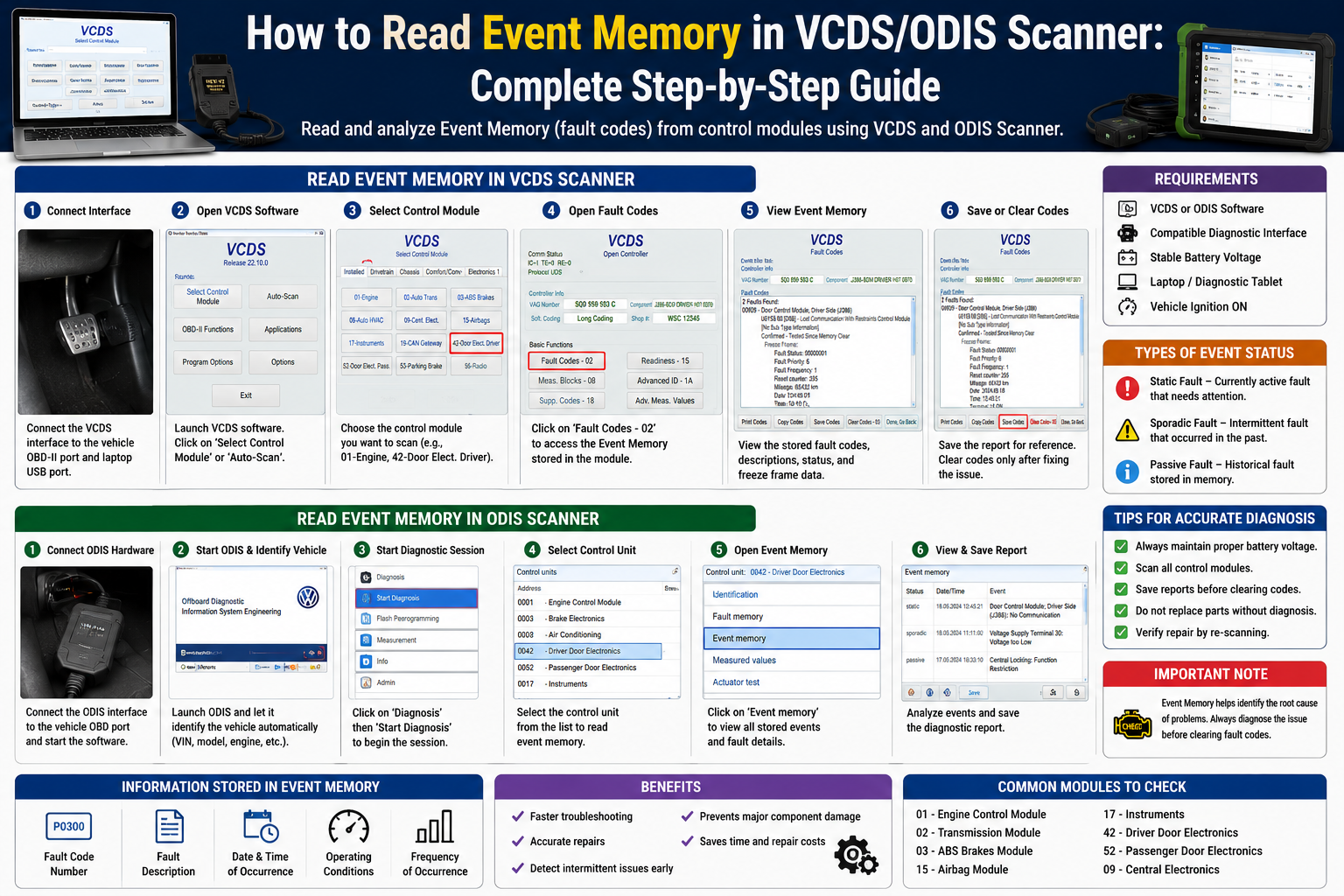
Event Memory in VCDS/ODIS Scanner
Read Event Memory with VCDS ODIS Scanner – Complete Step-By-Step Guide Learn Fault Codes, Event Memory, Diagnostics and Troubleshooting for Volkswagen, Audi and Skoda Vehicles
Today’s cars have dozens of electronic control units, or ECUs, that are constantly monitoring the car’s performance. If a fault occurs, these modules store diagnostic information known as Event Memory. Read Event Memory With VCDS Or ODIS Scanner One of the best ways to find vehicle problems before they become big issues.
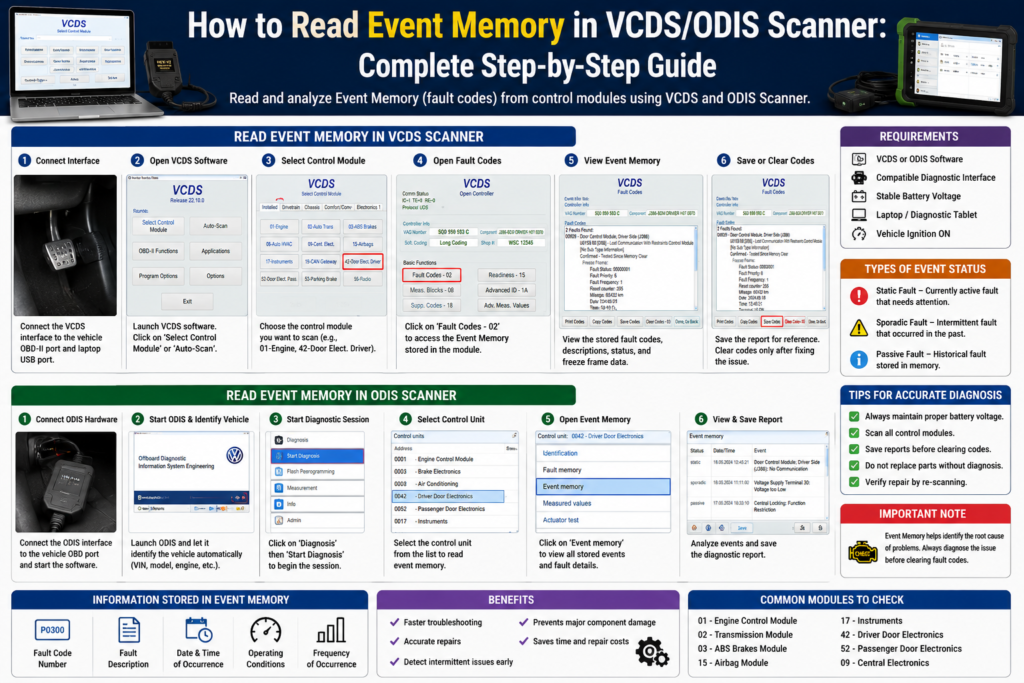
If you own a Volkswagen, Audi, Skoda or SEAT, learning how to read Event Memory can save you time and repair costs. This guide will cover everything you need to know about how to get into Event Memory and correctly interpret the fault codes.
Event memory in a vehicle is what?
Event Memory is a storage location within a vehicle’s electronic control modules that stores faults, warnings and system events.
When a fault occurs, the control unit saves information like:
- Fault code no
- Description of error
- Time of event
- Service conditions
- Number of times it happens
This information helps technicians correctly diagnose electrical and mechanical problems.
What Are VCDS and ODIS Scanners?
Before you learn how to read Event Memory, you need to understand the diagnostic tools involved.
VCDS – VAG-COM Diagnostic System
VCDS is professional diagnostic software, widely used for:
- Scanning of fault codes
- Coding and adaptations
- Live data tracking
- Service resets.
- Event Memory read
It is a common tool for vehicles of the Volkswagen Group.
ODIS (Offboard Diagnostics Information System)
ODIS is the official diagnostic software for authorized dealerships to:
- Diagnostics – Advanced
- Trouble-shooting
- Software updates
- ECU remapping
- Event Memory analysis
ODIS Access is deeper than most aftermarket diagnostic tools.
Why Should You Read Event Memory?
Reading Event Memory can help to find hidden faults before they lead to bigger failures.
The advantages are:
- Faster problem-solving
- Quality repairs
- Lower repair costs
- Detect intermittent problems
- Prevention of damage to components
Many problems don’t trigger dashboard warning lights right away but they are still recorded in Event Memory.
Common faults of event memory
The vehicle modules can store different types of errors, such as:
Communication Failures (Event Memory in VCDS/ODIS Scanner)
Here are the examples.
- CAN Bus Communication Error
- Communication with ECU lost
- Network communications failure
Sensor Error’s (Event Memory in VCDS/ODIS Scanner)
Some common entries related to sensor are:
- Oxygen Sensor Failure
- Fault Wheel Speed Sensor
- Failure of the coolant temperature sensor
Electrical System Failures (Event Memory in VCDS/ODIS Scanner)
They might include:
- Low-Voltage Detection
- Open Circuit [circuit open]
- Shorted to Ground
- Power Outage
Control Module Failures (Event Memory in VCDS/ODIS Scanner)
Modules can report:
- Failed Internal Control Module
- Application Error
- Memory Corruption
Pre-Reading Obligations Event Memory
Before you plug in your scanner, ensure that you have:
✅ Compatible with VCDS or ODIS software
✅ Diagnostic interface cable (if needed)
✅ Constant voltage of car battery
✅ Laptop or diagnostic tablet device
✅ Turn ON vehicle ignition
If the battery voltage is low, false codes may appear during diagnosis.
How to Read Event Memory Using VCDS Scanner
Follow these steps through.
Step 1: Connect the Diagnostic Interface
Plug the VCDS interface into:
- Vehicle’s OBD-II port
- USB port laptop
Ignition ON, engine off.
Step 2: Start VCDS Software
Start VCDS application. Check if it communicates with the vehicle.
Choose:
Auto Scan or Select Control Module
according to your diagnostic needs.
Step 3. Select a Control Module
For example:
- Electronic Control Module ( ECM)
- ABS Unit
- SRS Airbag Module
- Transmission Module
- BCM (Body Control Module)
Click on the module you want.
Step 4: Obtain Fault Codes
Choose:
Error Codes – 02
The software will download the stored and active fault codes from the selected control module.
Step 5: View Event Memory Data
You will see:
- Fault code no
- Description of defect
- Status Info
- Frequency count.
- Freeze Frame Data
Verify all events in storage.
6. Save diagnostic report
VCDS saves you:
- Reports in text format
- Scan logs
- Diagnostic data
Saving reports helps keep track of recurring issues.
How to Read Event Memory ODIS Scanner
ODIS follows a slightly different procedure.
Step 1: Connect Diagnostic Equipment
Event Memory in VCDS/ODIS Scanner
Connect the vehicle to the approved VAS diagnostic interface.
Turn the key to ON.
Step 2: Launch ODIS Software
Event Memory in VCDS/ODIS Scanner
Start ODIS and let it auto detect the car.
The software will pull:
- Vehicle Identification Number
- Car model
- Control modules installed
Step 3: Launch Vehicle Diagnostic Session
Event Memory in VCDS/ODIS Scanner
Choose:
Diagnostic visit
ODIS will communicate with all the available modules.
Step 4: Look at Event Memory
Event Memory in VCDS/ODIS Scanner
Visit:
Event Memory → Control Unit
The system shows stored faults and history events.
Step 5: Review Fault Details
Event Memory in VCDS/ODIS Scanner
ODIS also gives you more information like:
- Priority faults
- Climatic conditions
- System status
- Recommendations for troubleshooting based on guidance
This assists in the diagnosis of complex faults.
Step 6: Create Diagnostic Report
Event Memory in VCDS/ODIS Scanner
Remove any codes before saving the report for future use.
How to Read Event Memory Status Types
Not all stored faults have to be fixed immediately.
Static Fault
There is a fault and it needs looking at.
What else could it be?
- Sensor not attached.
- Damage to wiring
Fault, Sporadic
The problem was there before but it is not there now.
What else could it be?
- Transient voltage drop
- Loose connection.
Passive faults
An old fault lived in a memory.
The issue may already be resolved but remains recorded.
Do You Need To Clear Event Memory
Clear Event Memory Only After:
- Repair completion
- Log all fault data
- Root cause verification
Using the clearing codes without diagnosing the problem may make troubleshooting more difficult later on.
Common Mistakes In Reading Event Memory
Ready to use in no time.
Ignore Battery Voltage (Event Memory in VCDS/ODIS Scanner)
Low voltage will often make you feel that there is a communication fault.
Clearing codes too soon (Event Memory in VCDS/ODIS Scanner)
Always save reports before deleting data.
Parts Replacement Without Diagnosis (Event Memory in VCDS/ODIS Scanner)
Fault codes are symptoms, not the actual part that failed.
Ignoring Intermittent Faults (Event Memory in VCDS/ODIS Scanner)
Intermittent faults, if not corrected, may become permanent.
Tips for Making Correct Diagnoses
For consistent results .
- Real diagnostics.
- Keep battery voltage above 12.4V.
- All vehicle modules check
- Save all diagnosis report
- Check repairs after isolating faults
They all improve the accuracy of diagnosis significantly.
Advantages of Using VCDS and ODIS to Analyze Event Memory
Both tools provide useful diagnostic features such as:
- Rapid fault detection
- Detailed fault description
- Freeze-frame data analysis
- ECU communications test
- Professional level troubleshooting
They are still amongst the most trusted diagnostic platforms available for Volkswagen Group vehicles.
Closing Words
Learning how to read event memory in VCDS/ODIS Scanner is a very important skill when it comes to diagnosing modern vehicle problems. Event Memory provides valuable information on electrical, mechanical and communication related faults that may not always trigger warning lights.
Whether you’re a professional technician or an automotive enthusiast, proper use of VCDS or ODIS can help you diagnose problems quickly, reduce repair costs and improve vehicle reliability. Always save diagnostic reports before you clear the codes. Focus on finding the root cause, not just on clearing the fault entries.
Read this –10 Best Interior Cleaning Tips for Your Car
Read this –Connected Car Features Explained : Everything You Need to Know
Read this – Maruti Suzuki Brezza 2026: कीमत, माइलेज, फीचर्स और लॉन्च डेट – क्या यह बनेगी 2026 की सबसे बेस्ट SUV?..